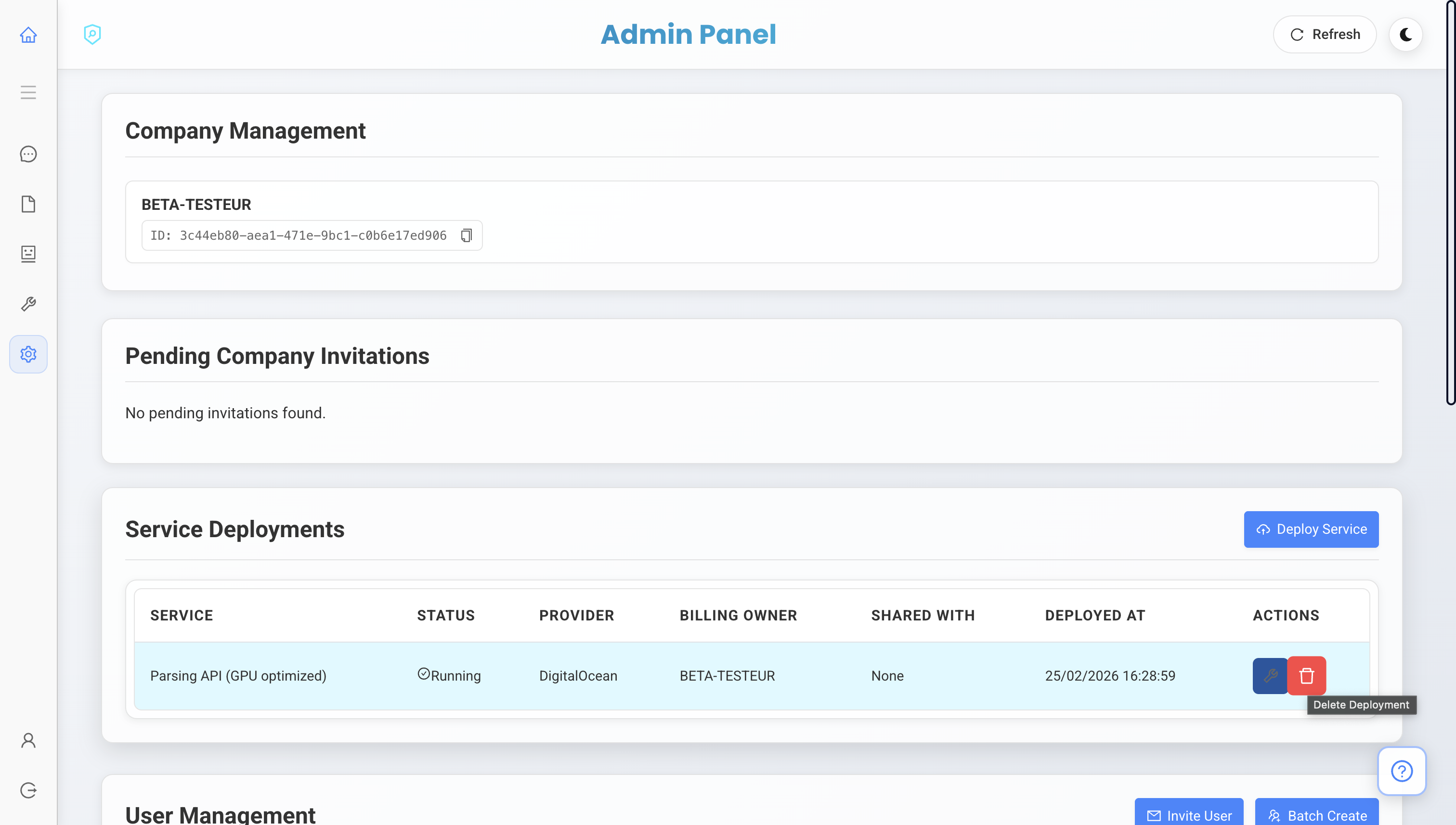

Disclaimer: This deployment process is currently manual. We are working to streamline it in future updates. If you encounter any issues, need assistance, or have specific requirements for other cloud providers, please do not hesitate to reach out to us.
Prerequisites
- Access to the UBIK Admin Console
- Billing owner permissions
Deployment Steps
-
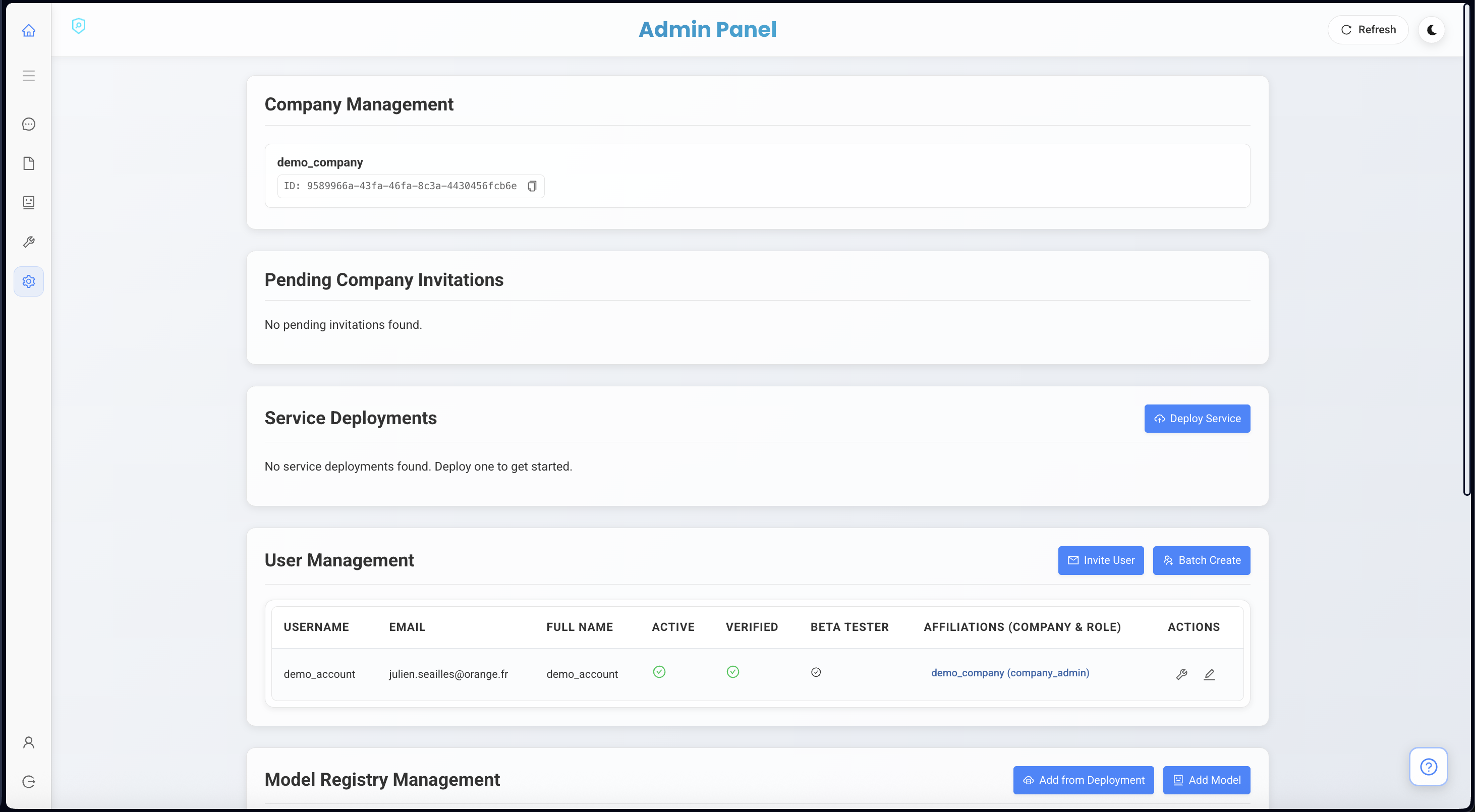
Navigate to the Admin Page
Go to https://app.ubik-agent.com/admin. Here you have access to manage all users within your company.
-
Initiate Deployment
Click on Deploy Service.
-
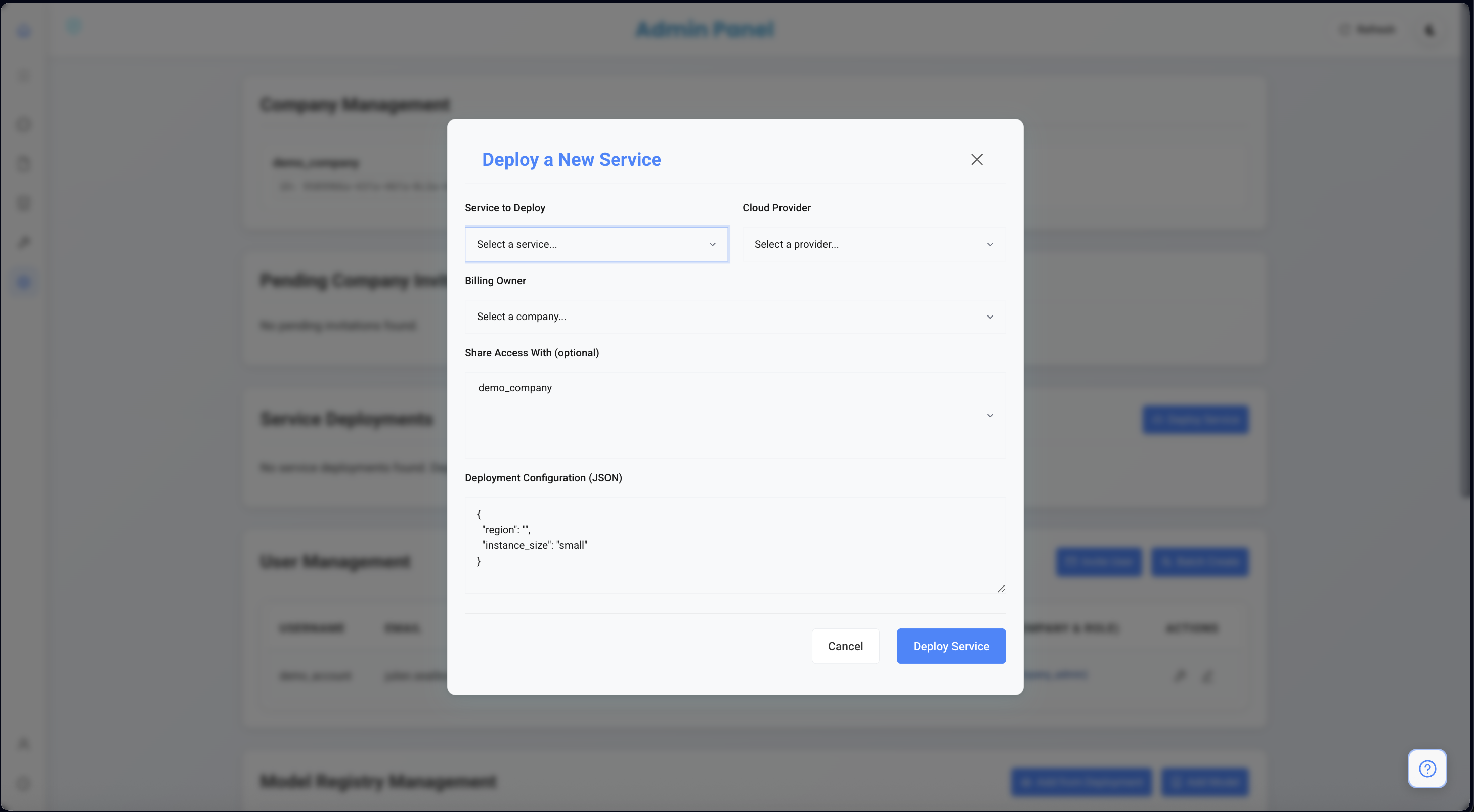
Configure Service
In the deployment modal:
- Select “Parsing api (gpu optimized)” for the service.
- Select “Digital Ocean” as the provider.
- Select your company (e.g., “demo_company”) as the billing owner.
-
JSON Configuration
Insert the following JSON configuration into the deployment configuration field:
Availability Note: The cheapest option is
gpu-4000adax1-20gbintor1(shown above), but it is often out of stock.If the deployment fails due to unavailability, try the following configuration which usesgpu-6000adax1-48gband is generally more available: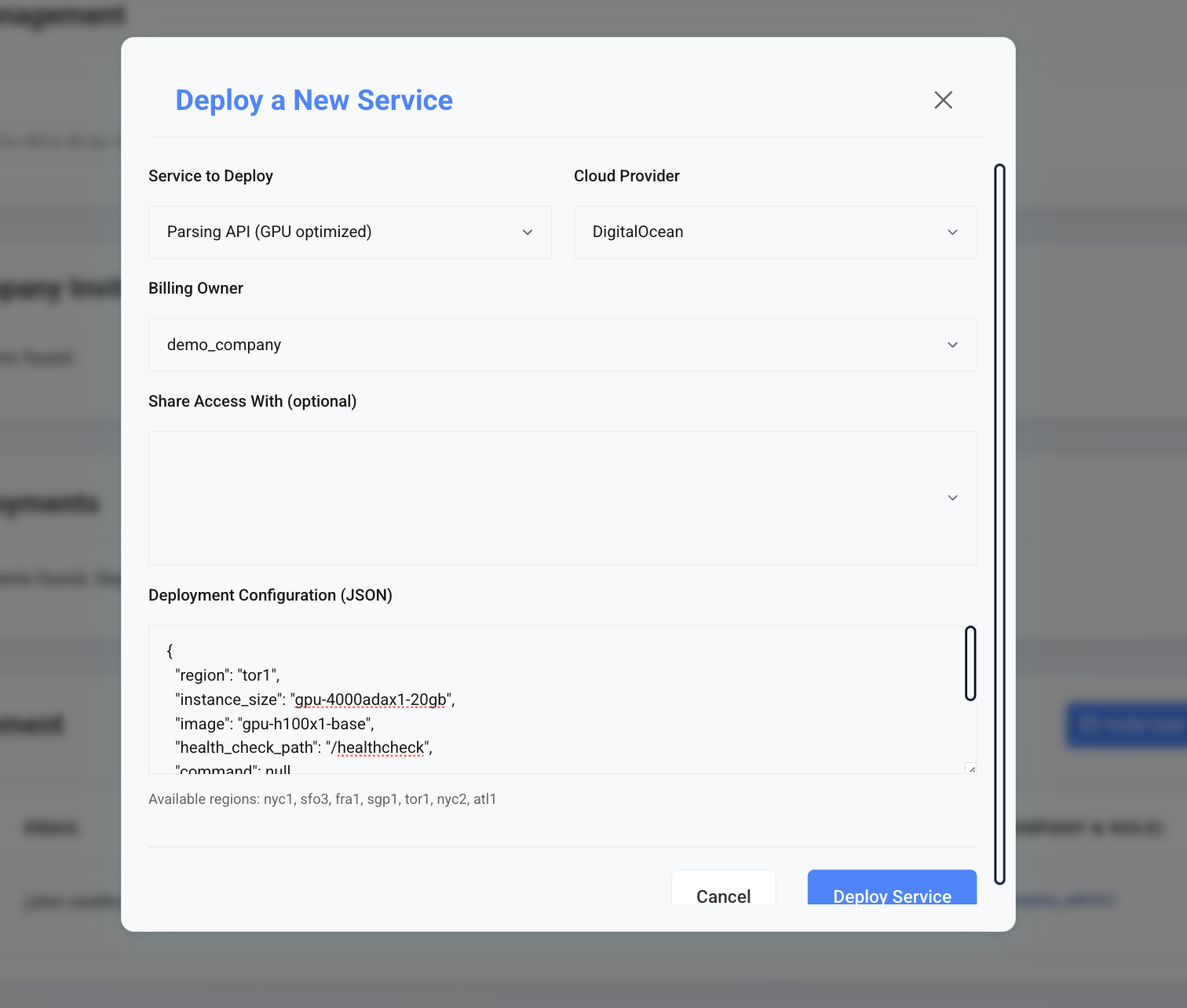
-
Deploy
Click on Deploy. The service will enter a deployment state. This process typically takes around 15 minutes for the machine to be set up.
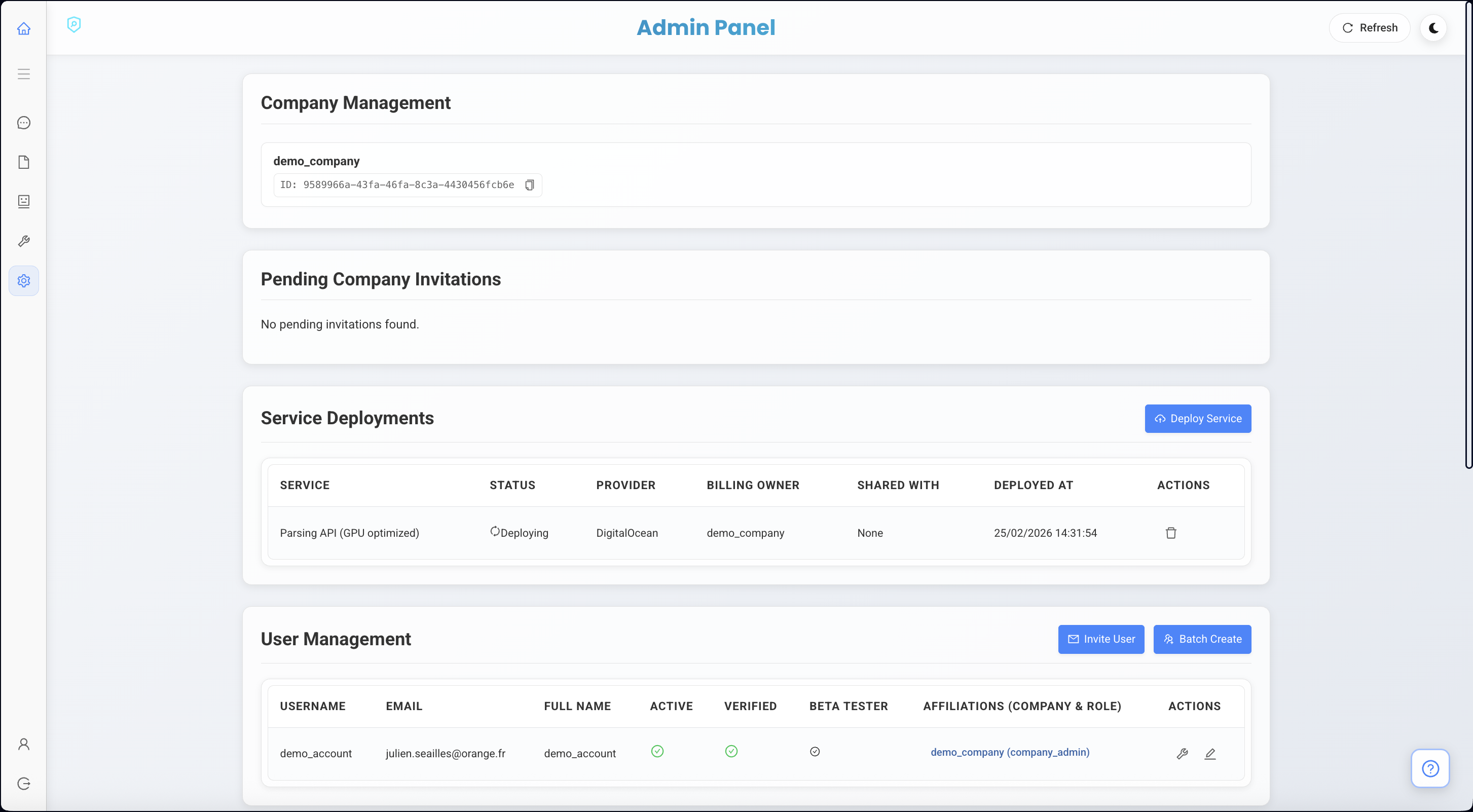
Access Management
Once the machine is ready and in a “Running” state, it is initially only associated with your company. You need to grant access to specific users or services.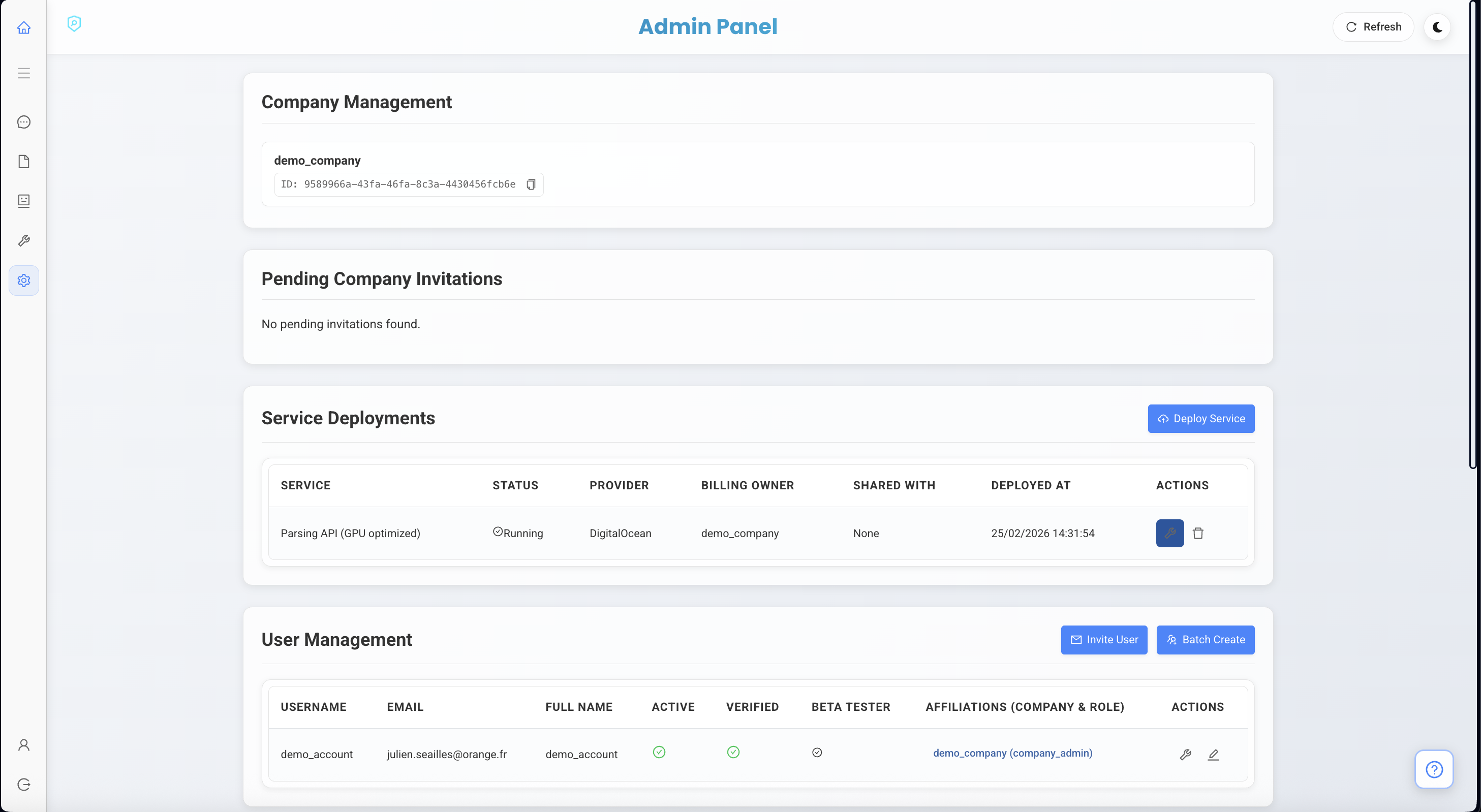
-
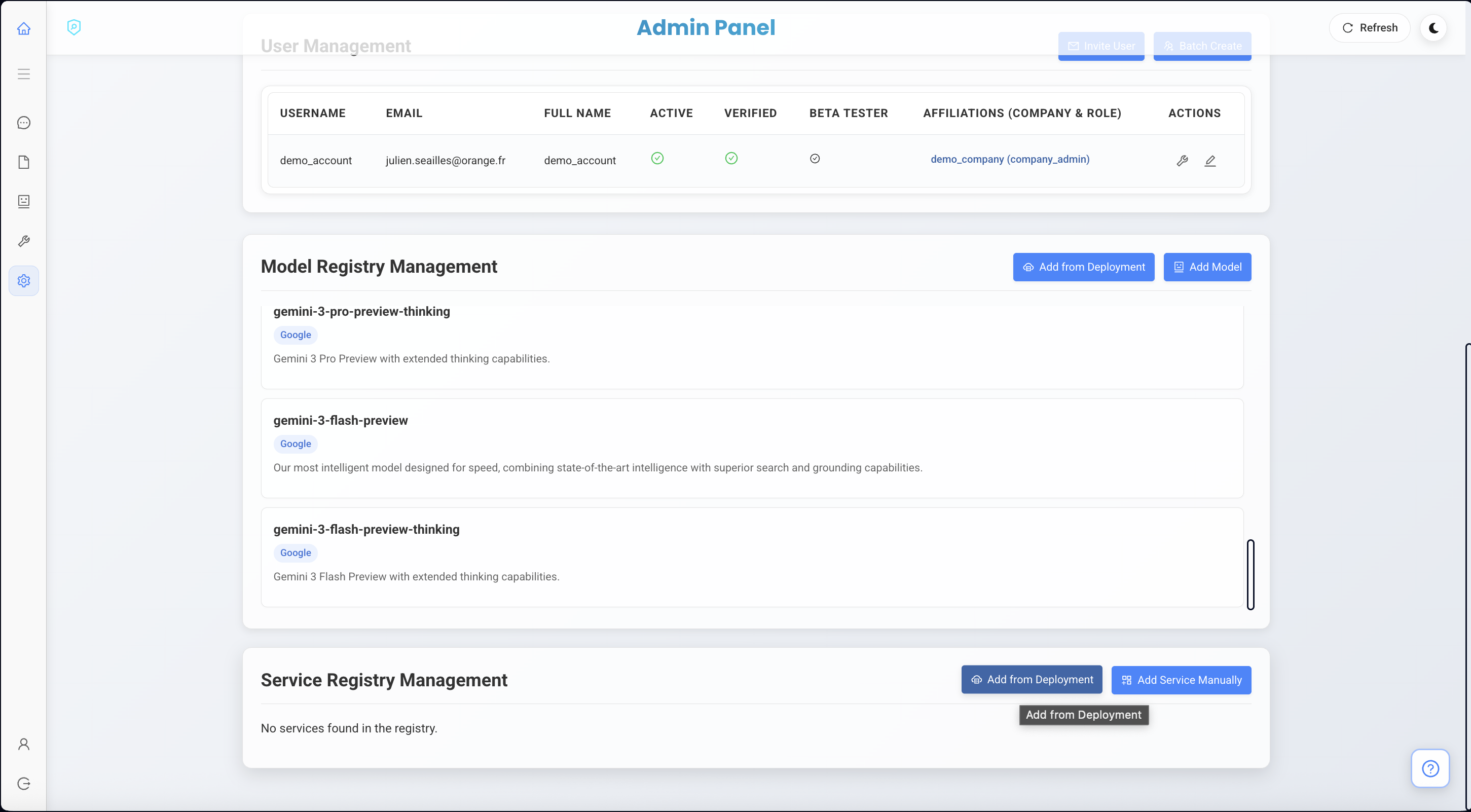
Link to Service
- Click on Add from deployment and select your new machine.
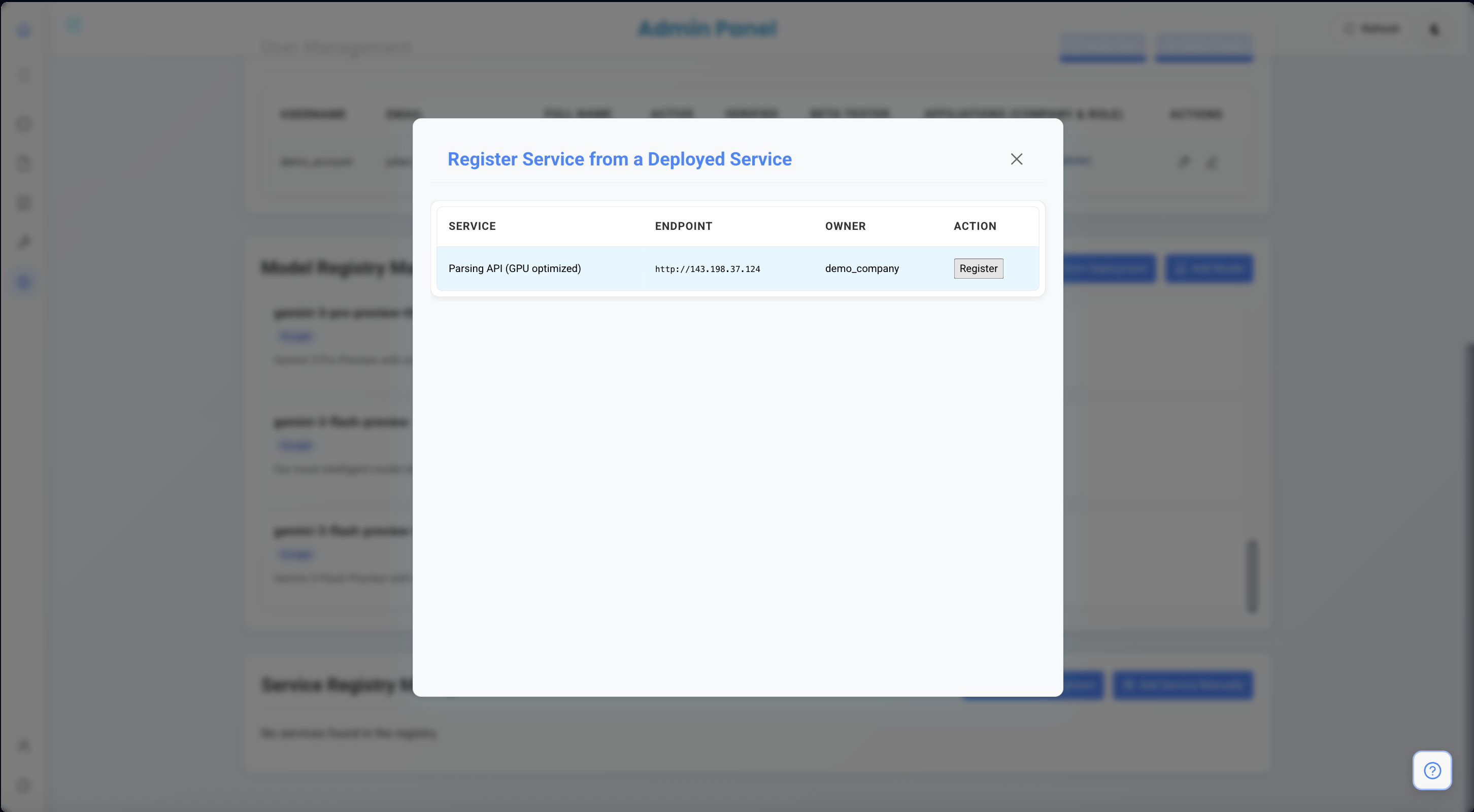
- Click on Register.
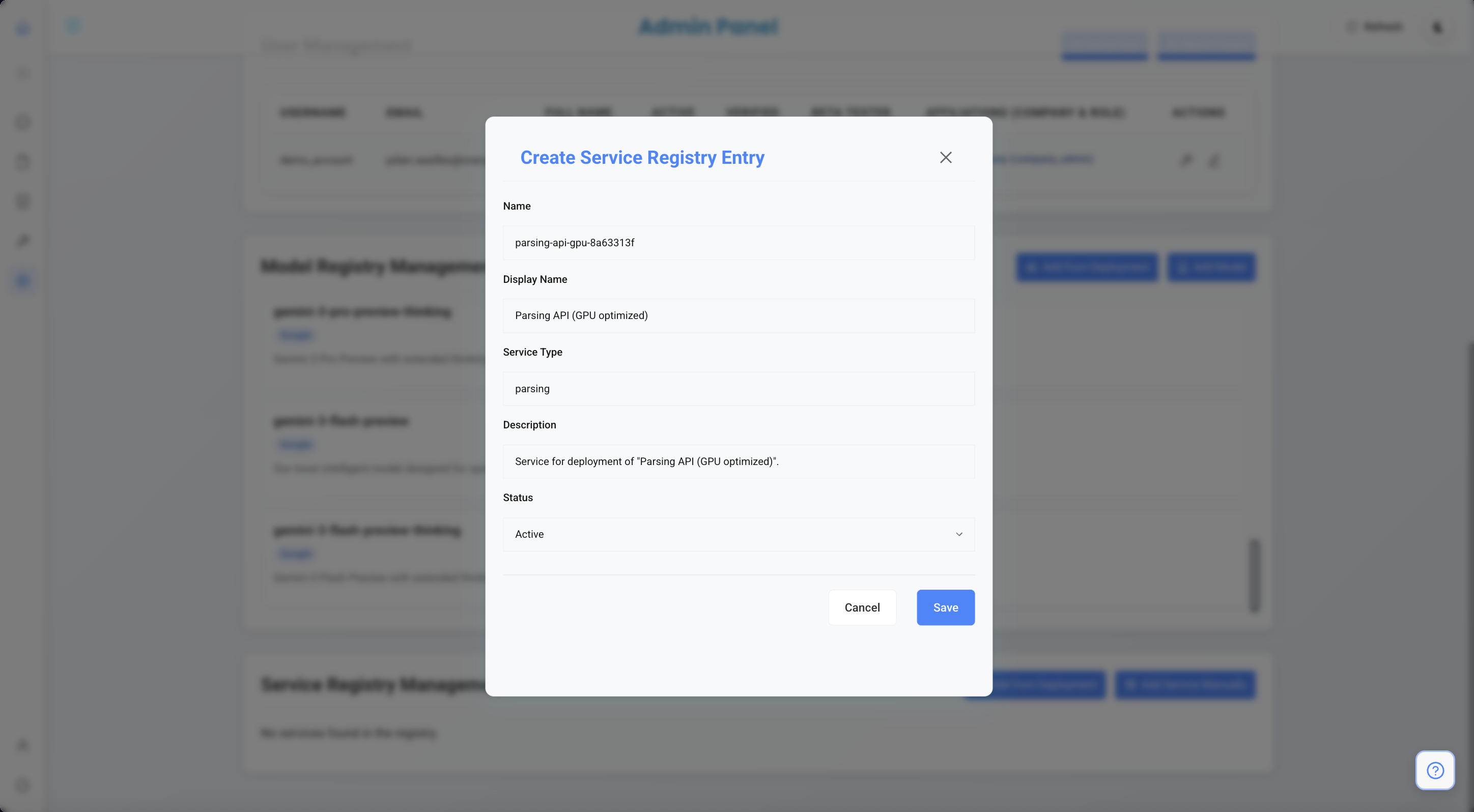
- Click on Save.
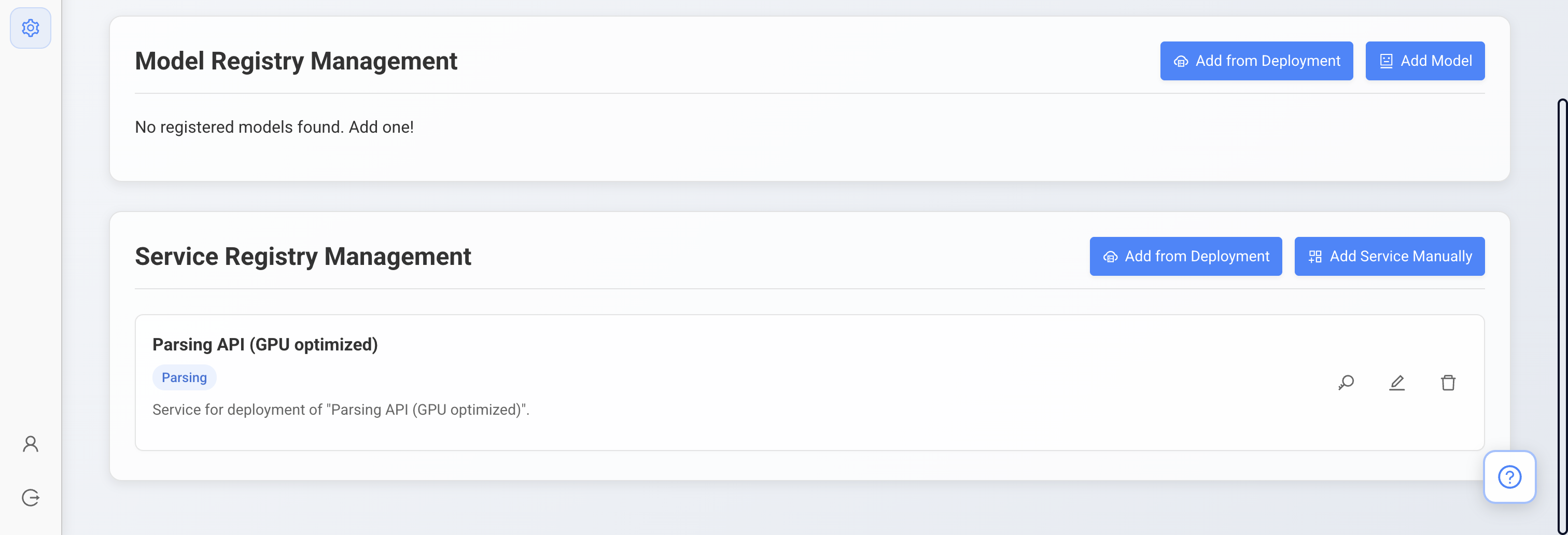
- Click on Add from deployment and select your new machine.
-
Manage Permissions
- In the service registry management, you have the new service that can be selected. Click on the Key icon to determine who should have access to the new service.
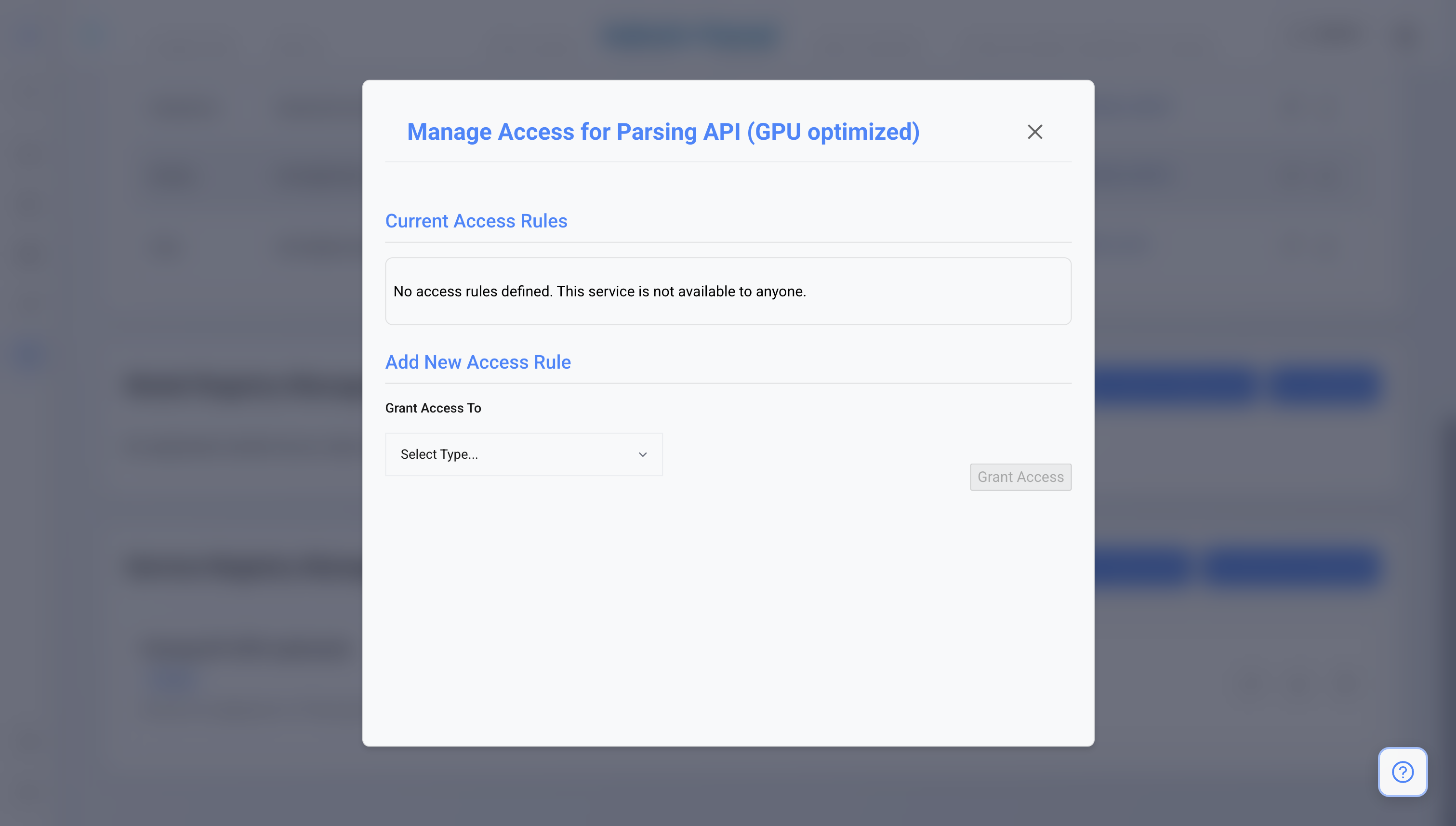
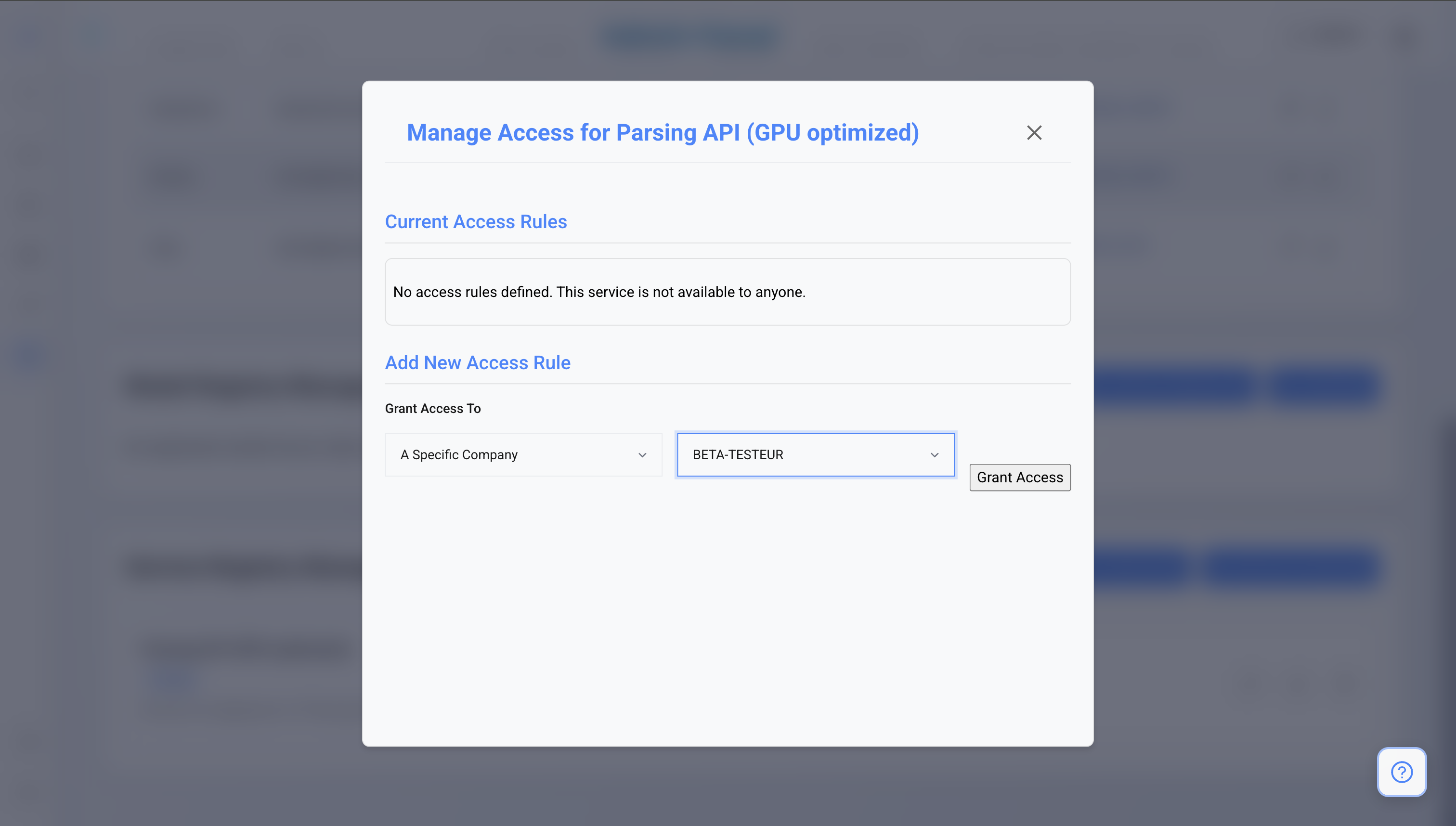
- In this menu, if you want to associate it to a particular user, you can select Grant access to “A specific company” and then “The name of your company”.
- You can also select to grant access to a particular user that is inside your company for more granular access management.
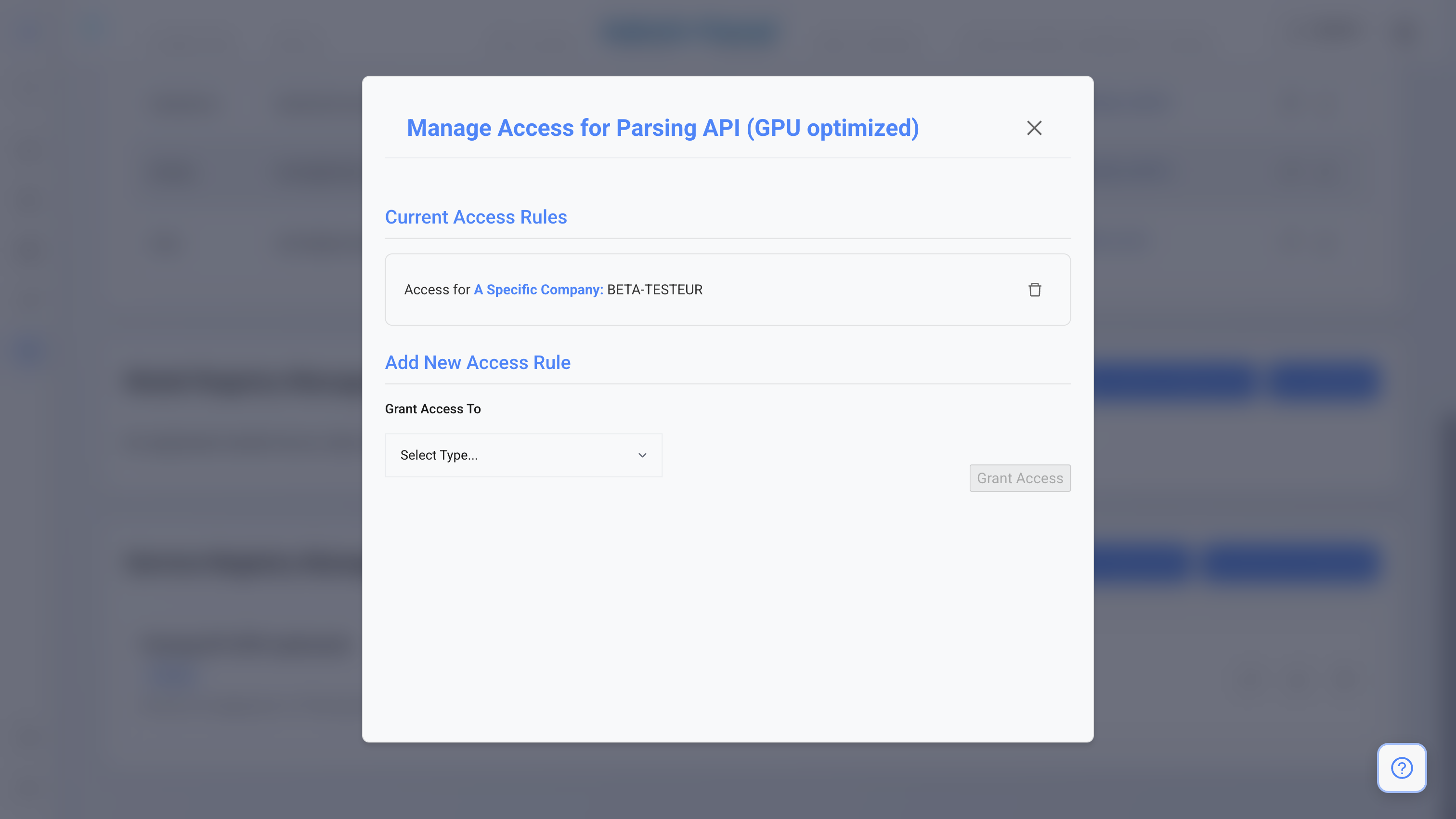
- In the service registry management, you have the new service that can be selected. Click on the Key icon to determine who should have access to the new service.
Important Notes
-
Cost Management: This instance will keep running until you either:
- Reach a low balance of credits (less than 2 hours of service worth).
- Manually click on the Delete deployment action.
-
Warning: Your credits can deplete quickly if you forget to kill the instance when it is no longer needed.